 Lukla Data Studio
Docs Editor
Writing queries
Completion that knows your schema, join suggestions from foreign keys, snippets, and the editing commands in the T-SQL editor.
On this page
The editor reads your database's schema, so completion, checks and fixes are about your tables, not generic SQL.
#Completion
Completion appears as you type (⌃Space shows it any time) and knows the query around the cursor:
- Tables after
FROMandJOIN, with their schemas. - Columns with their types after an alias and a dot (
cus.), and every column in scope elsewhere, qualified when two tables share a name. - CTE and derived-table columns, and declared variables.
- Whole joins from foreign keys after
JOIN, with theONclause written and a meaningful alias. *→ the column list,INSERT INTO t→ its column list and aVALUEStemplate, andEXEC proc→ named parameters with their types.
Tab or ↩ accepts a suggestion.
#Join suggestions
Type JOIN after a table and the suggestions are the tables it has foreign keys to, each with its ON clause:
SELECT soh.SalesOrderID, soh.TotalDue
FROM Sales.SalesOrderHeader soh
JOIN Sales.Customer cus ON cus.CustomerID = soh.CustomerID   -- picked from the list
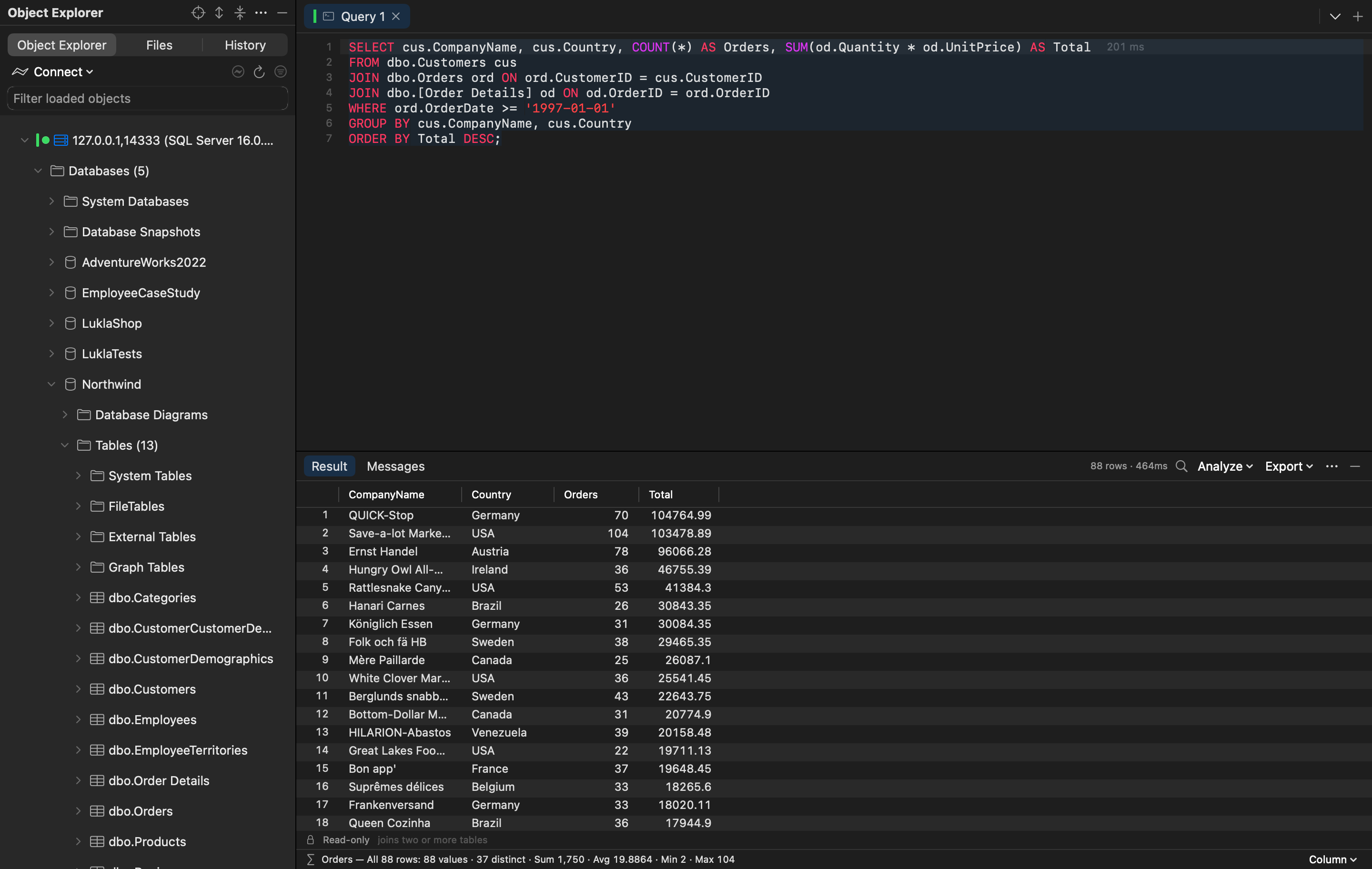
After a join, the next JOIN suggests the tables the joined one leads to as well, so a chain such as Customers → Orders → Order Details is two picks:
#Aliases
New aliases are meaningful rather than t1, t2: Customers becomes cus and SalesOrderHeader becomes soh. Choose your own per table in Settings ▸ Editor ▸ Table aliases.
#Snippets
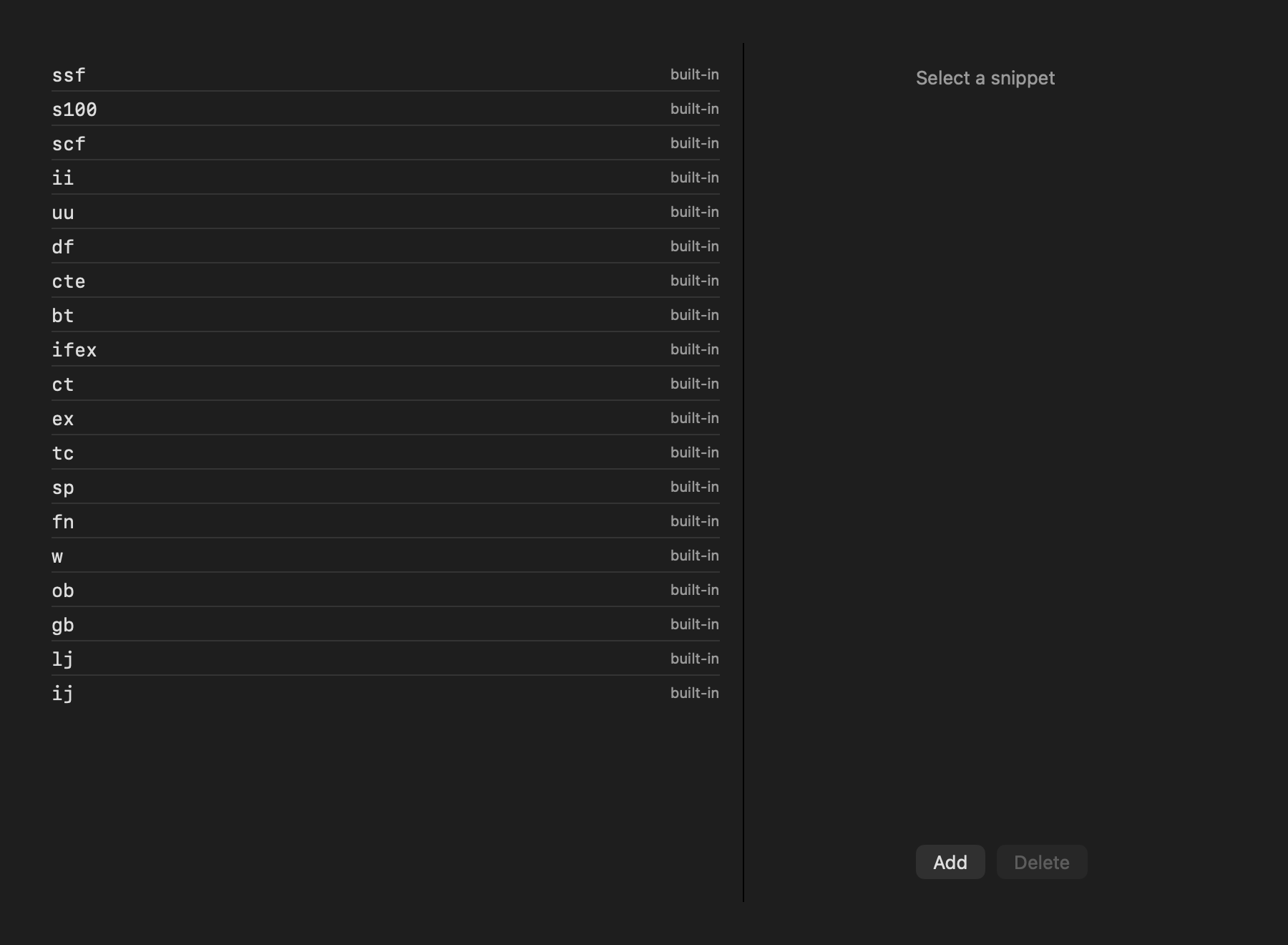
Type a snippet's name and press Tab:
| Snippet | Expands to |
|---|---|
ssf | SELECT * FROM |
s100 | SELECT TOP (100) * FROM |
scf | SELECT COUNT(*) FROM |
ii | INSERT INTO … VALUES |
uu | UPDATE … SET … WHERE |
df | DELETE FROM … WHERE |
cte | a common table expression |
bt | a transaction that rolls back (safe to try), with COMMIT commented out |
tc | BEGIN TRY … END TRY BEGIN CATCH THROW; END CATCH around the selection |
ifex | IF EXISTS (…) BEGIN … END |
ct | CREATE TABLE with an identity primary key |
sp | CREATE OR ALTER PROCEDURE with SET NOCOUNT ON |
fn | CREATE OR ALTER FUNCTION (inline table-valued) |
ex | EXEC |
w, ob, gb | WHERE, ORDER BY, GROUP BY |
lj, ij | LEFT JOIN, INNER JOIN |
Tab then jumps between the snippet's placeholders. Edit these or add your own in Settings ▸ Snippets; a snippet can use $CURSOR$, $SELECTEDTEXT$, $DATE$, $USER$ and numbered placeholders such as ${1:name}.
#Editing commands
Besides the usual text editing, the editor has the commands developers expect from their IDE (shortcuts in the Lukla keymap; see Keyboard shortcuts for the others):
| Command | Shortcut |
|---|---|
| Comment/uncomment lines | ⌘/ |
| Block comment | ⌥⌘/ |
| Duplicate line or selection | ⌘D |
| Delete line | ⇧⌘K |
| Move line up / down | ⌥⇧↑ / ⌥⇧↓ |
| Join lines | ⌃⇧J |
| Expand / shrink selection | ⌃⇧↑ / ⌃⇧↓ |
| Upper / lower case | ⇧⌘U / ⇧⌘L |
| Rename an alias or variable everywhere | ⇧F6 |
| Go to definition | F12 |
| Quick documentation | F1 |
| Find usages | ⌥F7 |
| Go to line | ⌘L |
#Navigating your code
- Go to definition (F12) on a table, view, procedure or function opens its definition.
- Quick documentation (F1) shows a table's columns and keys, or a procedure's parameters, in a popover.
- Drag a table or column from Object Explorer into the editor to insert its bracketed name.
#Links that open the editor
Other apps and scripts can open a query tab:
open "lukla://editor"
open "lukla://query?sql=SELECT%201&connection=Local&database=Shop"