 Lukla Data Studio
Docs Start here
Getting started
Install Lukla Data Studio, connect to SQL Server (including SQL Server in Docker on your Mac), and run your first query.
On this page
#What you need
- A Mac with Apple silicon running macOS 14 Sonoma or later.
- SQL Server 2016 or later, on Windows, Linux or in Docker, with a SQL login (a user name and password).
#Install
Download Lukla Data Studio from the download page, open the disk image and drag the app to Applications. It's free during the beta.
#Connect to a server
Choose Connect ▾ ▸ New Connection… at the top of Object Explorer.
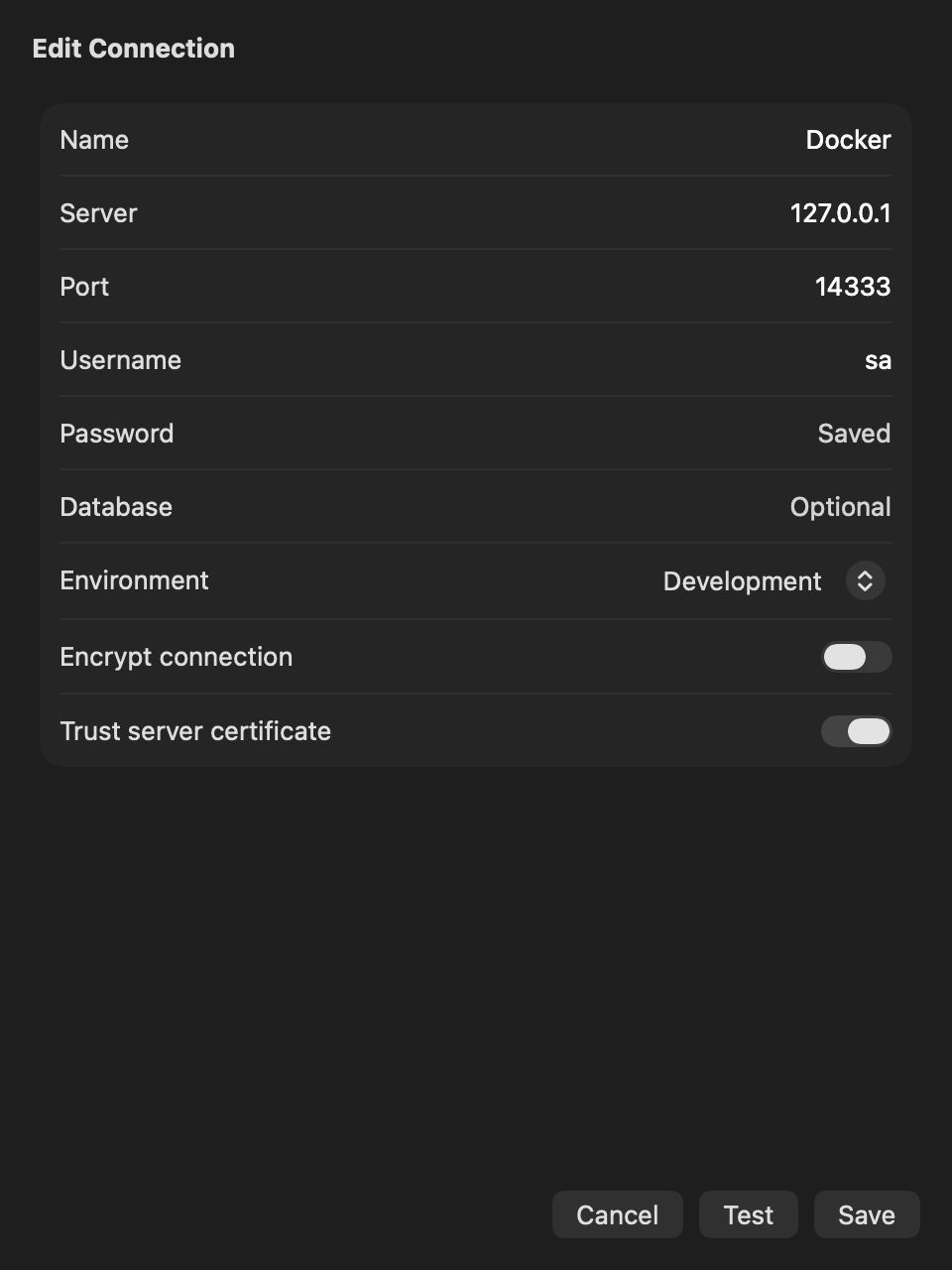
| Field | What to enter |
|---|---|
| Name | How the connection shows in the app, such as Shop production. |
| Server and Port | The host name or IP address, and the port (1433 unless your server uses another). |
| Username and Password | A SQL login. The password is kept in the macOS Keychain. |
| Database | Optional. The database new query tabs start in. |
| Environment | Development, Test, Staging or Production. It colours the connection everywhere and decides how carefully risky statements are checked. |
| Encrypt connection / Trust server certificate | Turn on Trust server certificate for servers with a self-signed certificate, such as SQL Server in Docker. |
Press Test to check the login, then Save. The server appears in Object Explorer, labelled like SSMS: host,port (SQL Server 16.0.x – login).
#SQL Server in Docker on your Mac
docker run -d --name sql -e ACCEPT_EULA=Y -e MSSQL_SA_PASSWORD='Your!Passw0rd' \
  -p 1433:1433 mcr.microsoft.com/mssql/server:2022-latest
Then connect to 127.0.0.1, port 1433, user sa, with Trust server certificate on.
#Run your first query
Right-click a database in Object Explorer and choose New Query, or press ⌘T. Type a query and press ⌘↩ to run the statement under the cursor:
SELECT TOP (10) name, create_date
FROM sys.databases
ORDER BY create_date DESC;
⇧⌘↩ runs the whole script, batch by batch. Results stream into the grid below the editor; see Results grid.
#Environments keep production safe
Each connection's environment colour shows in the tab bar and the connection picker. On Production:
- an
UPDATEorDELETEwithout aWHEREasks before it runs; DROP,TRUNCATE TABLEandALTER TABLE … DROP COLUMNask you to type the database name first;- sending SQL to the AI assistant asks first.
The levels per environment are in Settings ▸ Editor.
#Where things are
- Object Explorer, Files and History share the sidebar on the left (⌘0 shows or hides it).
- Query tabs fill the rest of the window; each has its own connection and database.
- The AI assistant opens on the right with the ✦ toolbar button (⇧⌘A).
- Settings (⌘,) holds the editor, keyboard, formatting, code analysis and AI options.