 Lukla Data Studio
Docs Results
Editing data
Edit, add and delete rows right in the results grid, review the script, and apply it in one transaction, including tables without a primary key, JSON and XML values, and the data browser.
On this page
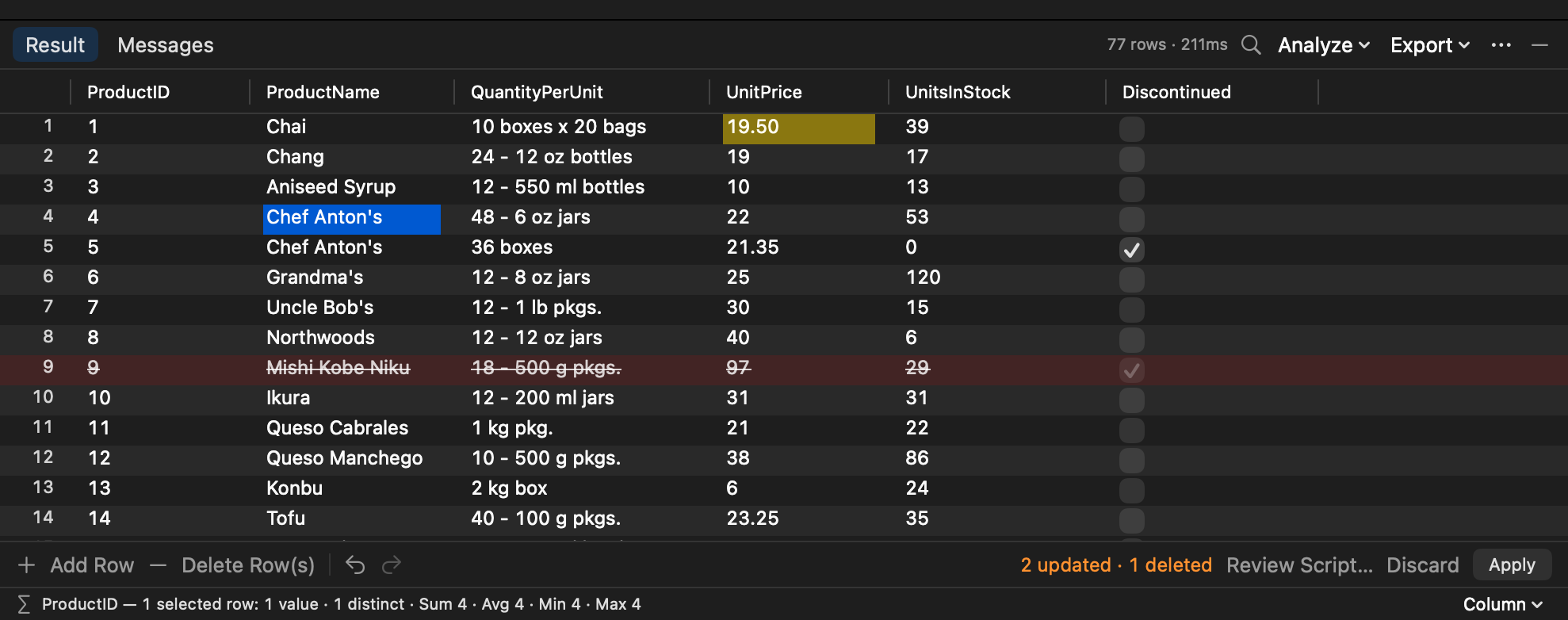
When a result comes from one table and includes its key, the grid is editable. Nothing is written as you type: changes wait until you press Apply (⌘S in the grid), which runs them all in one transaction.
#When a result is editable
The app works it out after the run:
- Editable when the statement reads a single table and the result includes the table's key columns, so each row maps to exactly one row on the server.
- Read-only for joins, aggregates, views, results without the key, and results derived from another (Transpose, Group By). The 🔒 Read-only note under the grid says why.
SELECT ProductID, ProductName, UnitPrice, UnitsInStock   -- editable: ProductID is the key
FROM dbo.Products;

SELECT ProductName, UnitPrice                           -- read-only: the key isn't in the results
FROM dbo.Products;
Expressions in an editable result (UnitPrice * 1.2 AS WithTax) stay read-only; the other columns can still be edited.
#Make changes
| Do | How |
|---|---|
| Edit a cell | Double-click it, or select it and press ↩. Esc cancels. |
| Set NULL | ⌘0, or right-click ▸ Set to NULL. |
| Toggle a bit | Click its checkbox, or press Space. |
| Add a row | Add Row under the grid. Identity, computed and rowversion columns are filled in by the server. |
| Delete rows | Select them and press ⌘⌫, or Delete Row(s). Restore Row(s) brings them back before you apply. |
| Paste from Excel | Copy cells in Excel or Numbers, select the first cell and press ⌘V. Rows and columns fill from there. |
| Undo / redo | ⌘Z / ⇧⌘Z while the grid has focus. |
Values are checked against the column's type as you enter them (a date column won't take next Tuesday), and the reason shows in the bar under the grid.
#Review and apply
The bar under the grid shows 2 updated · 1 deleted and offers:
- Review Script… opens the exact batch Apply runs in a new query tab;
- Discard throws the changes away (it can be undone);
- Apply runs everything in one transaction.
Each UPDATE and DELETE checks the row still has the values you read, and stops if someone changed or deleted it in the meantime: the whole Apply rolls back, the row is marked, and nothing is saved. On production connections, Apply asks first.
SET XACT_ABORT ON;
BEGIN TRY
    BEGIN TRANSACTION;
    SET @change = N'Change 1 (update row [ProductID] = 1)';
    UPDATE [dbo].[Products] SET [UnitPrice] = 19.50
    WHERE [ProductID] = 1 AND [UnitPrice] = 18.0000;
    IF @@ROWCOUNT <> 1 THROW 50001, N'The row was changed or deleted by someone else after it was read. Nothing was saved.', 1;
    COMMIT TRANSACTION;
END TRY
BEGIN CATCH
    IF @@TRANCOUNT > 0 ROLLBACK TRANSACTION;
    …
END CATCH;
(An abridged version of what Review Script shows.)
#Tables without a primary key (heaps)
A table with no primary key or unique index can be edited too. Each row is found by all of its values (the comparable columns the result shows; xml, text and image columns are left out):
UPDATE dbo.Imports SET Qty = 10
WHERE Name = N'Bo' AND Qty IS NULL;
IF @@ROWCOUNT <> 1 THROW …        -- the whole Apply rolls back
If two rows are completely identical, there's no telling which one you mean, so the change matches both and Apply rolls everything back with a message rather than change two rows. The bar under the grid says No key: a row is found by all its values so you know.
#JSON, XML and long text
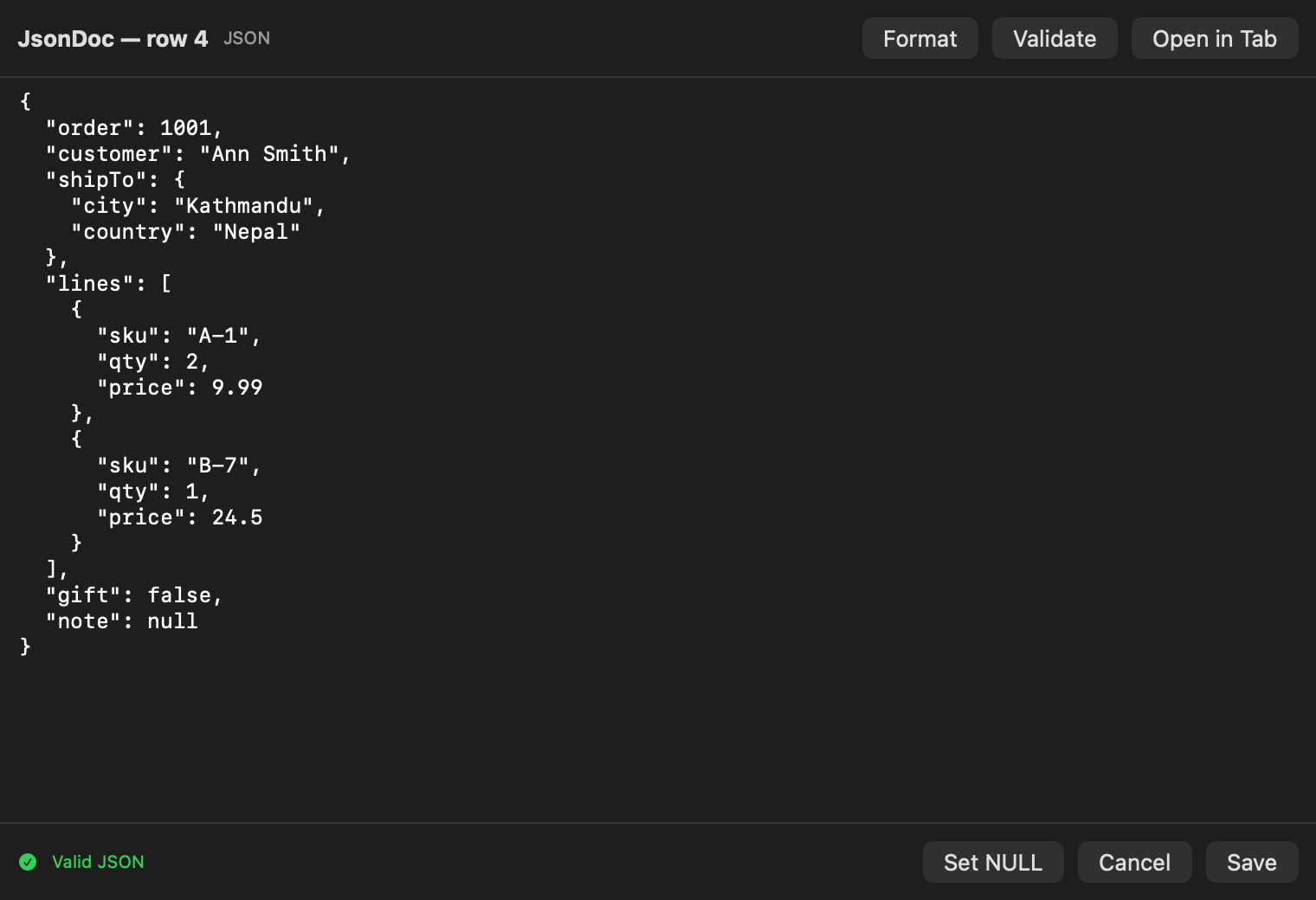
Double-click a long, multi-line, JSON or XML value (or any xml or (max) column) to edit it in the cell editor instead of the cell:
- Format pretty-prints JSON or XML without changing key order or values;
- Validate shows where it's broken;
- Set NULL, Open in Tab, and Save (⌘↩), which makes it a pending change like any other.
xml columns only save well-formed XML, since the server would refuse anything else. Invalid JSON in a text column shows a warning but still saves, because it's a legal value there.
#The data browser
Double-click a table in Object Explorer, or right-click ▸ Open Data, to browse it in its own tab:
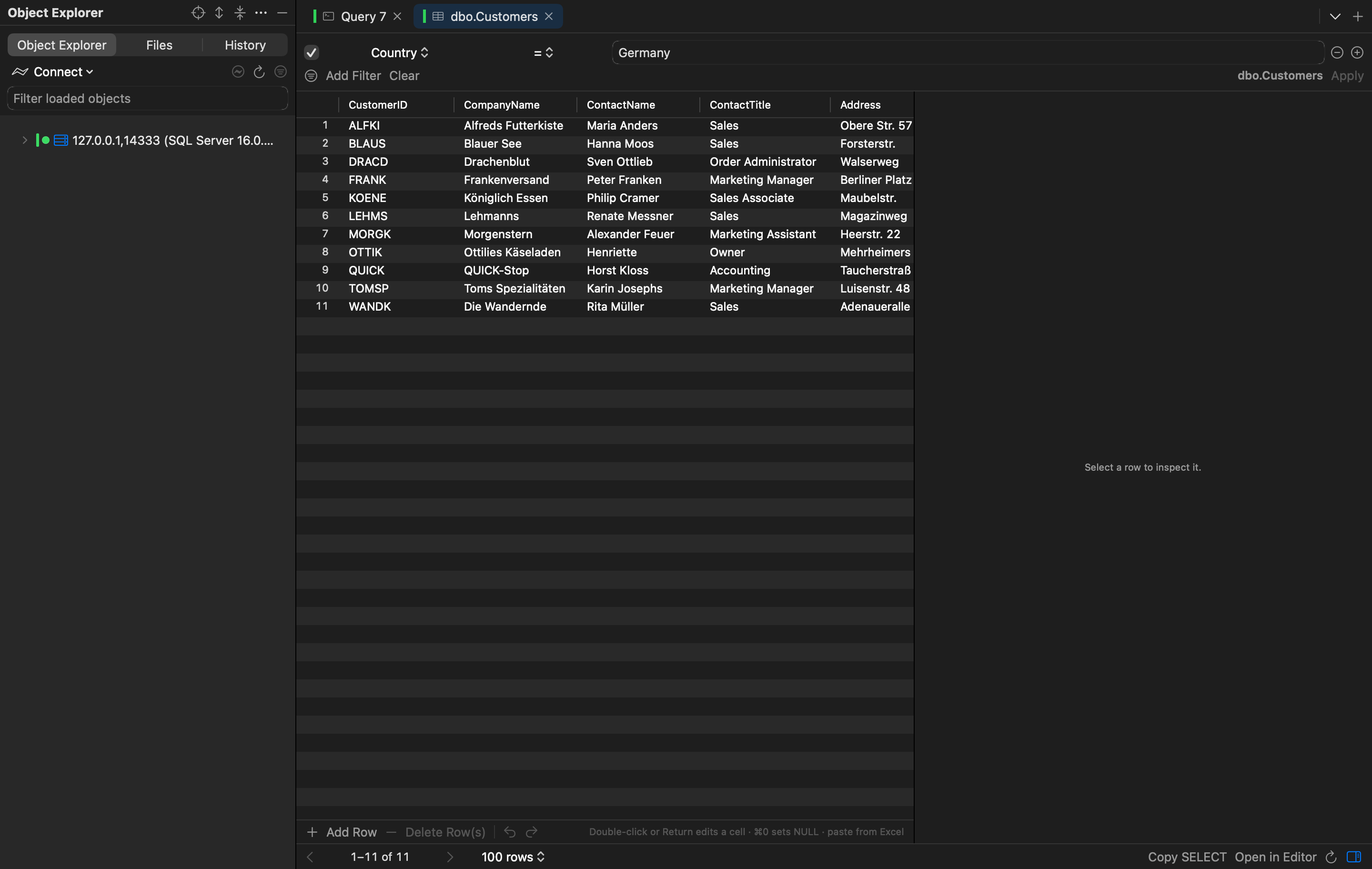
- Filters: stack conditions (
Country = Germany,City starts with B), then press ↩ or Apply. They run on the server, with each value sent as a parameter. - Sorting: click a header to sort on the server.
- Paging: 100, 500 or 1,000 rows a page; the total is counted when filters change.
- Row inspector: the selected row on the right, with NULLs marked and JSON and XML pretty-printed. Its → buttons open the row a foreign key points to in a new tab.
- Copy SELECT and Open in Editor give you the exact query behind the page.