 Lukla Data Studio
Docs Server and objects
Object Explorer
The SSMS tree on the Mac: several servers, every folder from Databases to Agent jobs, schema folders, scripting any object, and the actions on each.
Object Explorer is the Object Explorer pane of the sidebar (⌘0 shows or hides it). It follows SSMS's tree, so things are where you expect them.
#Servers
Connect ▾ at the top lists your saved connections, each with Connect, Edit Connection… and Delete Connection…, plus New Connection…. Servers are listed in the order you connected, labelled like SSMS: host,port (SQL Server 16.0.x – login), with a dot that's green while connected.
Servers reconnect on the next launch with the folders you had open. One that can't be reached stays in the list, greyed out with the error, until you Reconnect or Remove it.
Right-click a server for New Query, Refresh, Restore Database…, Start XEvent Profiler, Activity Monitor, Analyze Server…, Edit Connection…, Delete Connection… (removes the saved connection only), Copy Server Name and Disconnect.
#The tree
- Server: Databases (System Databases and Database Snapshots in their own folders, then yours), Security, Server Objects, Replication, Always On High Availability, Management, Integration Services Catalogs, SQL Server Agent and XEvent Profiler.
- Database: Database Diagrams, Tables (System, File, External and Graph tables in subfolders; each table with its Columns, Keys, Constraints, Triggers, Indexes and Statistics), Views, External Resources, Synonyms, Programmability, Service Broker, Storage and Security.
A folder is read the first time you open it. If a feature isn't set up or you lack permission, the folder says so (Agent not running, Not configured, or the server's error) instead of looking empty.
#Schema folders
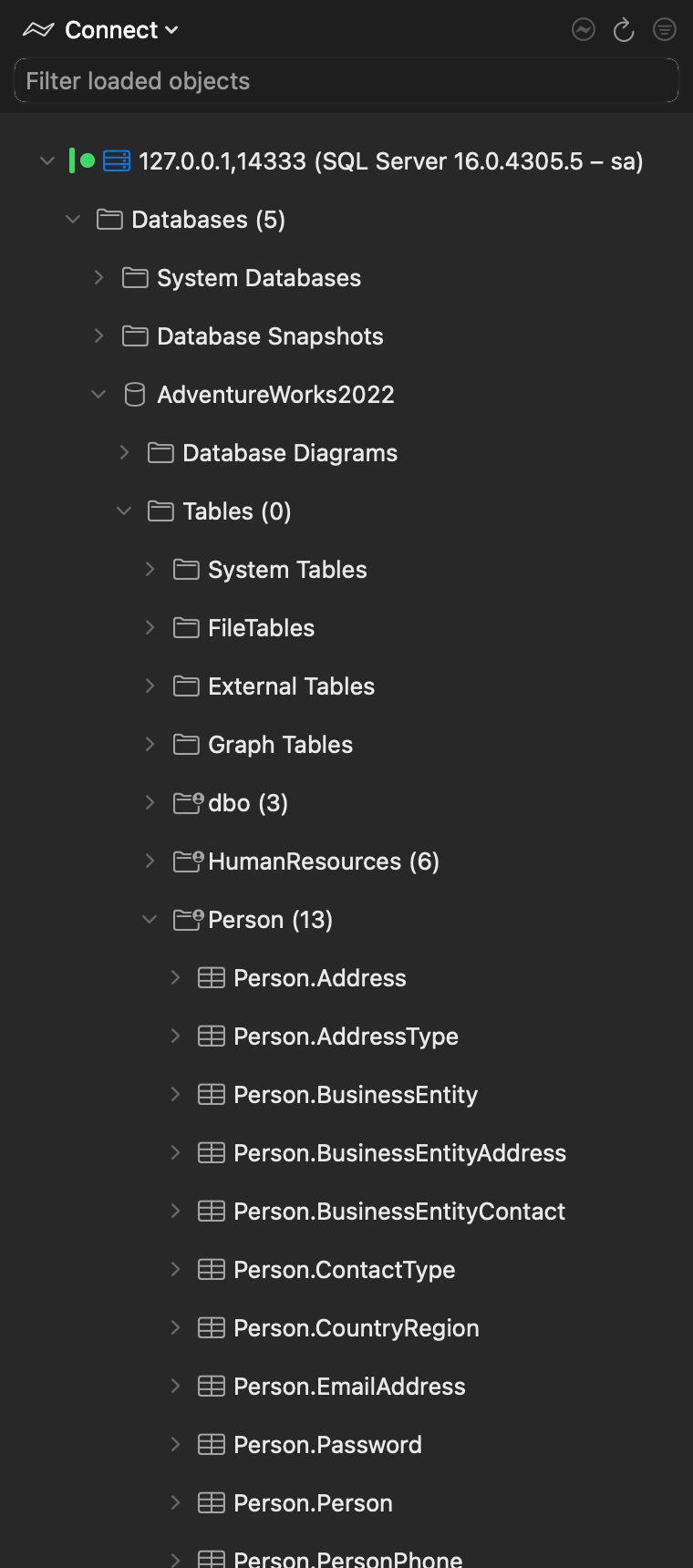
In a database with many schemas, Group Objects by Schema (in a folder's menu, or Settings ▸ General) gives Tables, Views, Procedures and Functions one folder per schema, with a count:
#Finding things
- Filter loaded objects at the top narrows every folder you've opened; a database, table or folder stays visible when something inside it matches.
- For anything on the server, opened or not, use SQL Search (⌥⇧⌘F).
#Actions on objects
| Object | Right-click |
|---|---|
| Database | New Query, Refresh, Compare Schema With…, ER Diagram, Tools ▸ Index Maintenance… / Query Store…, Back Up Database…, Restore Database… |
| Table or view | Select Top 1000 Rows (opens a tab and runs it), Open Data, Generate Test Data…, Compare Data With…, Show in ER Diagram |
| Any object | Script as ▸ CREATE / DROP / DROP and CREATE, Delete…, Rename…, Find Usages, Dependencies, Quick Documentation |
| Table or view, scripting | Script as ▸ SELECT / INSERT / UPDATE / DELETE |
| Procedure | Script as ▸ EXECUTE (named parameters; OUTPUT parameters declared and selected) |
| Function | Script as ▸ SELECT |
Double-clicking a table opens its data in the data browser; double-clicking anything else scripts its definition. Drag an object or a column into the editor to insert its bracketed name.
#Scripting and deleting
Every object has Script as ▸ CREATE / DROP / DROP and CREATE; procedures are scripted as CREATE OR ALTER.
Where SQL Server can't hand back a faithful definition, the script says so in a comment, and passwords and secrets become <password, sysname, ?> placeholders that won't run until you replace them. Scripted SQL logins are created disabled, as in SSMS.
Delete… opens the DROP script in a new query tab; nothing runs until you run it.