 Lukla Data Studio
Docs AI assistant
AI assistant
Bring your own OpenAI-compatible endpoint (OpenAI, Anthropic, Ollama, LM Studio, llama.cpp…) to explain, optimize and fix queries, review execution plans and write SQL, with your schema and your team's SQL rules as context.
On this page
The AI assistant uses an endpoint you choose and pay for, or one running on your own Mac. Nothing shows until it's set up and its Test passes, and it never runs anything itself.
#Set it up
Open Settings ▸ AI:
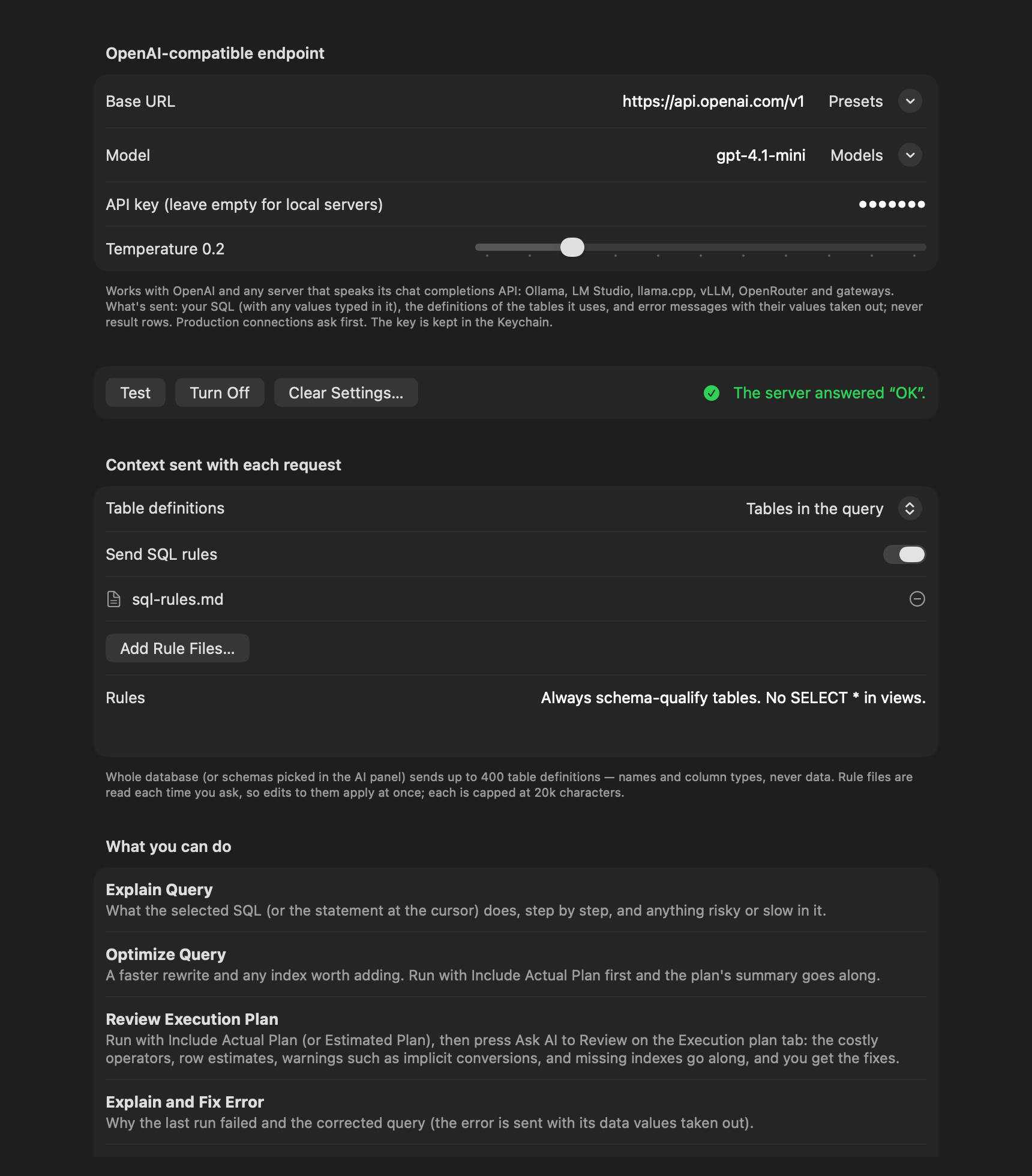
- Base URL: pick a preset or type any server that speaks OpenAI's chat-completions API:
| Preset | Base URL |
|---|---|
| OpenAI | https://api.openai.com/v1 |
| Anthropic (Claude) | https://api.anthropic.com/v1 |
| Ollama (this Mac) | http://localhost:11434/v1 |
| LM Studio (this Mac) | http://localhost:1234/v1 |
| llama.cpp server (this Mac) | http://localhost:8080/v1 |
vLLM, OpenRouter and company gateways work the same way.
- Model: type a name, or Models ▾ ▸ Refresh to list the server's.
- API key: leave it empty for local servers. It's kept in the macOS Keychain.
- Press Test. When the server answers, the assistant appears in the editor.
Settings save as you type. Changing the URL, model or key needs a new Test.
Turn Off hides the assistant and keeps the settings; Turn On brings it back without a new Test. Clear Settings… forgets the URL, model and key (it asks first).
#A local model with Ollama
brew install ollama
ollama pull qwen2.5-coder
ollama serve
Then choose the Ollama (this Mac) preset, model qwen2.5-coder, no key, and press Test. Your SQL never leaves the Mac.
#Ask AI
Select some SQL (or put the cursor in a statement) and use the editor's right-click Ask AI menu, Query ▸ Ask AI, or the AI panel's buttons:
| Action | What you get |
|---|---|
| Explain Query | What the SQL does, step by step, and anything risky or slow in it. |
| Optimize Query | A faster rewrite and any index worth adding. Run with Include Actual Plan first and the plan's summary goes along. |
| Review Execution Plan | The plan's problems (scans, lookups, bad estimates, implicit conversions, spills, missing indexes) and their fixes. Also Ask AI to Review on any plan. |
| Explain and Fix Error | Why the last run failed and the corrected query. |
| Write SQL from Description | Select a comment such as -- customers with two orders last month and get a query written against your tables. |
| Chat | Ask anything about the current query or SQL Server, with follow-up questions. |
Answers stream in. Every SQL block in an answer has Insert (into the tab it came from), Open in New Tab and Copy; ask follow-ups in the box at the bottom.
#The AI panel
The ✦ button at the top right of the window, or ⇧⌘A, opens the assistant beside the editor:
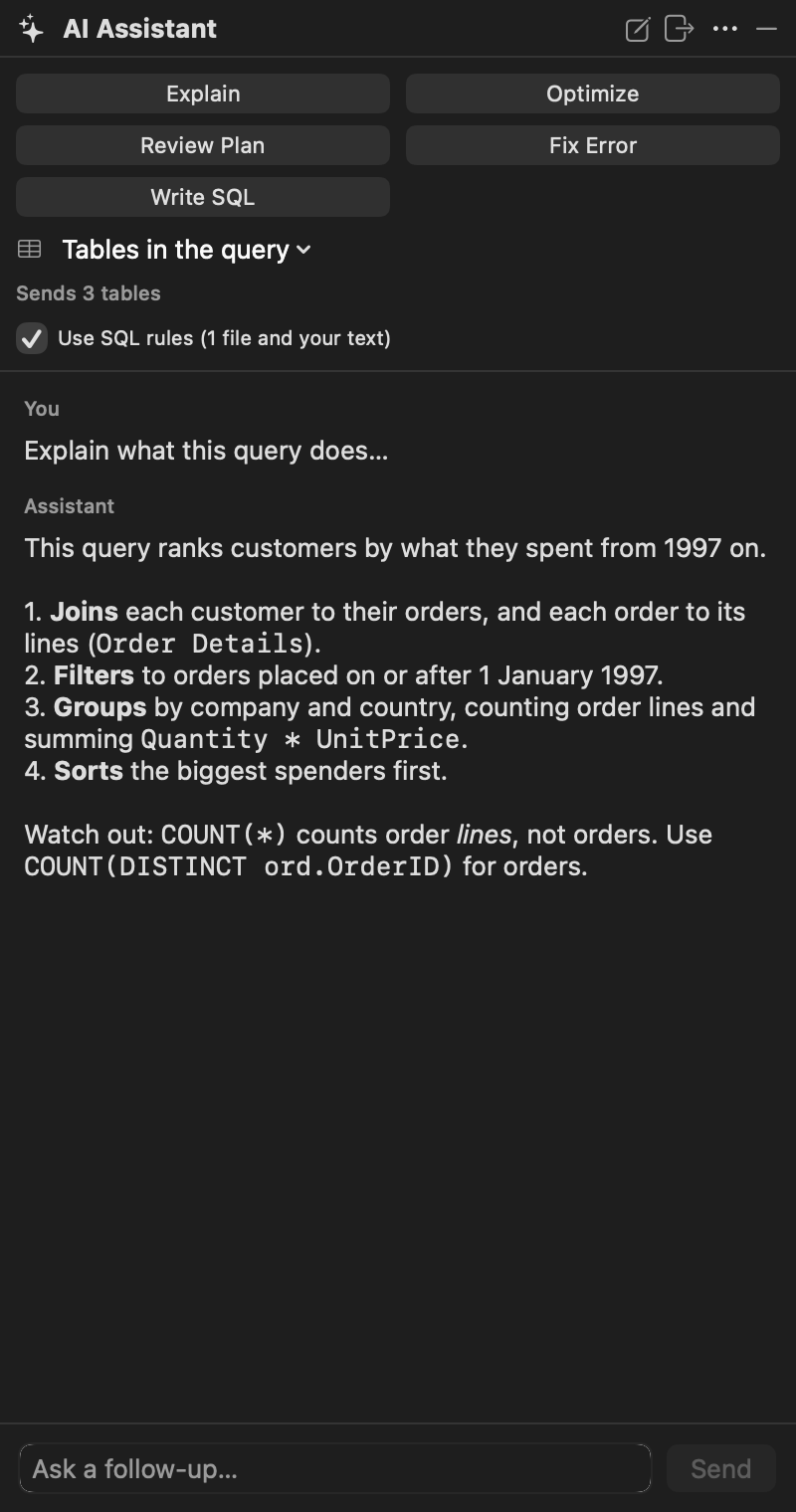
- Buttons for every action, a chat box with Include the current query, and the conversation.
- While the panel is showing, every Ask AI action answers there; otherwise each opens its own tab.
- New chat starts over; Open in Tab moves the conversation to a tab.
- ⋮ ▸ Pinned docks it; Auto-Hide tucks it into a strip at the window's edge that slides out on hover, like the explorer.
#Context: your schema
So answers use your real tables and columns, the definitions of the tables go along. Choose how many with Table definitions (Settings ▸ AI) or the panel's scope menu:
- Tables in the query (the default): the tables your SQL names;
- Whole database: every table and view;
- Selected schemas: every table and view in the schemas you tick (in the panel).
Definitions are names and column types, never data. Large databases are cut at 400 tables (or about 80,000 characters), and the panel says how many tables a request sends.
#Context: your team's SQL rules
Add your team's conventions, and the assistant follows them in every query it writes and points out where your SQL breaks them:
- Add Rule Files…: Markdown or text files, such as a
sql-style.mdin your repository. They're read each time you ask, so edits apply at once. - Rules: or type them in.
- Send SQL rules turns them on and off (also in the panel).
# SQL rules
- Always schema-qualify tables (dbo.Orders, not Orders).
- No SELECT * in views or procedures.
- Dates as 'YYYY-MM-DD' literals; never rely on the session's date format.
- Every new table has a clustered primary key named PK_<Table>.
Each file is capped at 20,000 characters and all rules at 40,000.
#What's sent, and what isn't
- Sent: the SQL you asked about (with any values typed in it), the table definitions above, your SQL rules when they're on, and, for Fix Error, the error message with its data values taken out. For plans: the statements and a summary of the plan, with values in predicates taken out.
- Never sent: result rows.
- Production connections ask before anything is sent.
- Links in answers are shown as plain text, never as clickable links.