 Lukla Data Studio
Docs Settings
Settings
Every pane of Settings (⌘,): General, Highlighting, Editor, Formatting, Snippets, Keyboard, Code Analysis and AI.
On this page
Open Settings with ⌘,. Changes apply as you make them.
#General
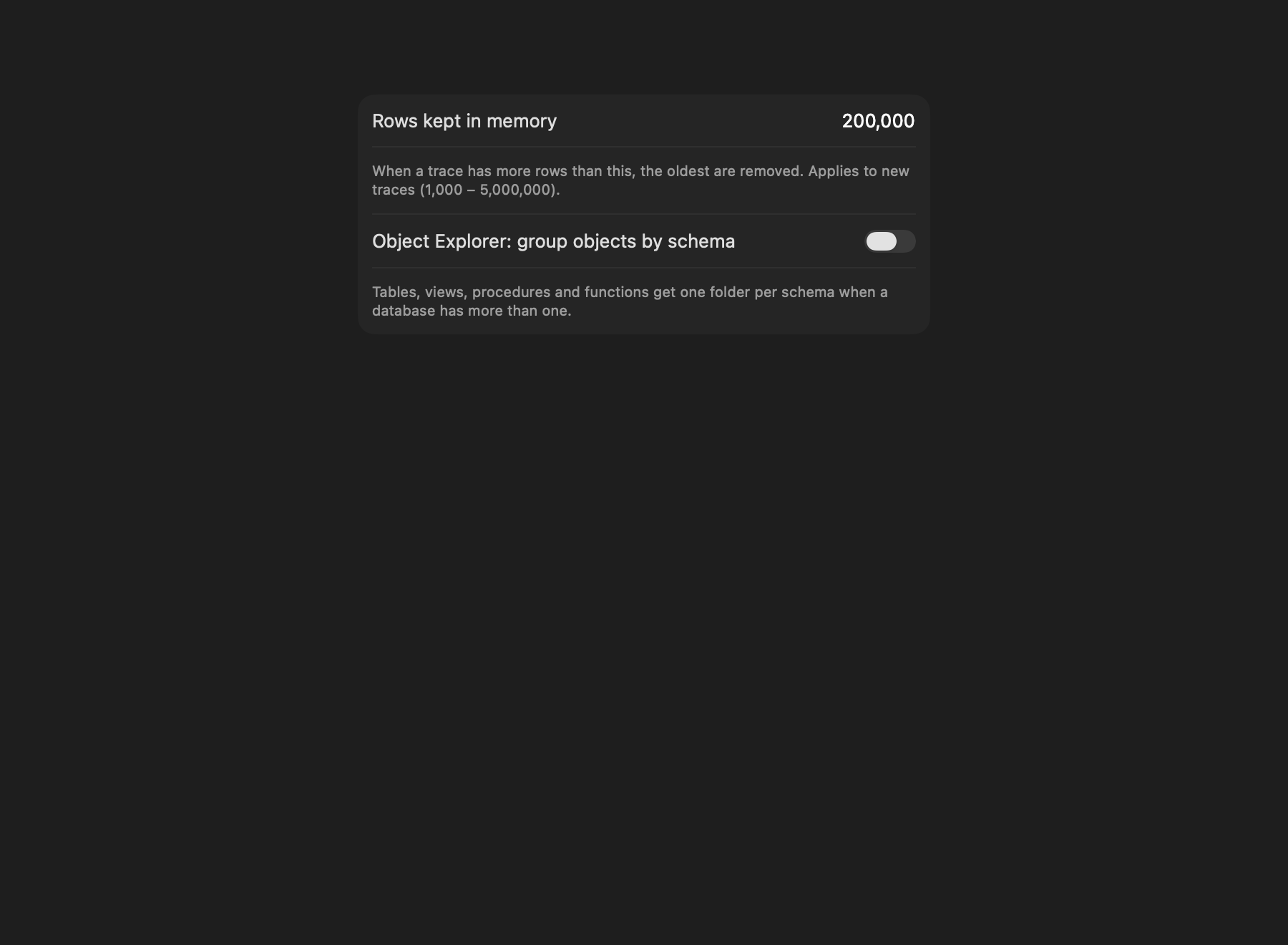
- Rows kept in memory (traces): when a trace has more rows than this, the oldest are removed. 200,000 by default; applies to new traces.
- Object Explorer: group objects by schema: one folder per schema for tables, views, procedures and functions when a database has more than one. See Object Explorer.
#Highlighting
Rules that colour profiler rows by condition, such as Duration ≥ 1000 ms in red and Reads ≥ 10,000 in orange (the defaults). See Profiler.
#Editor
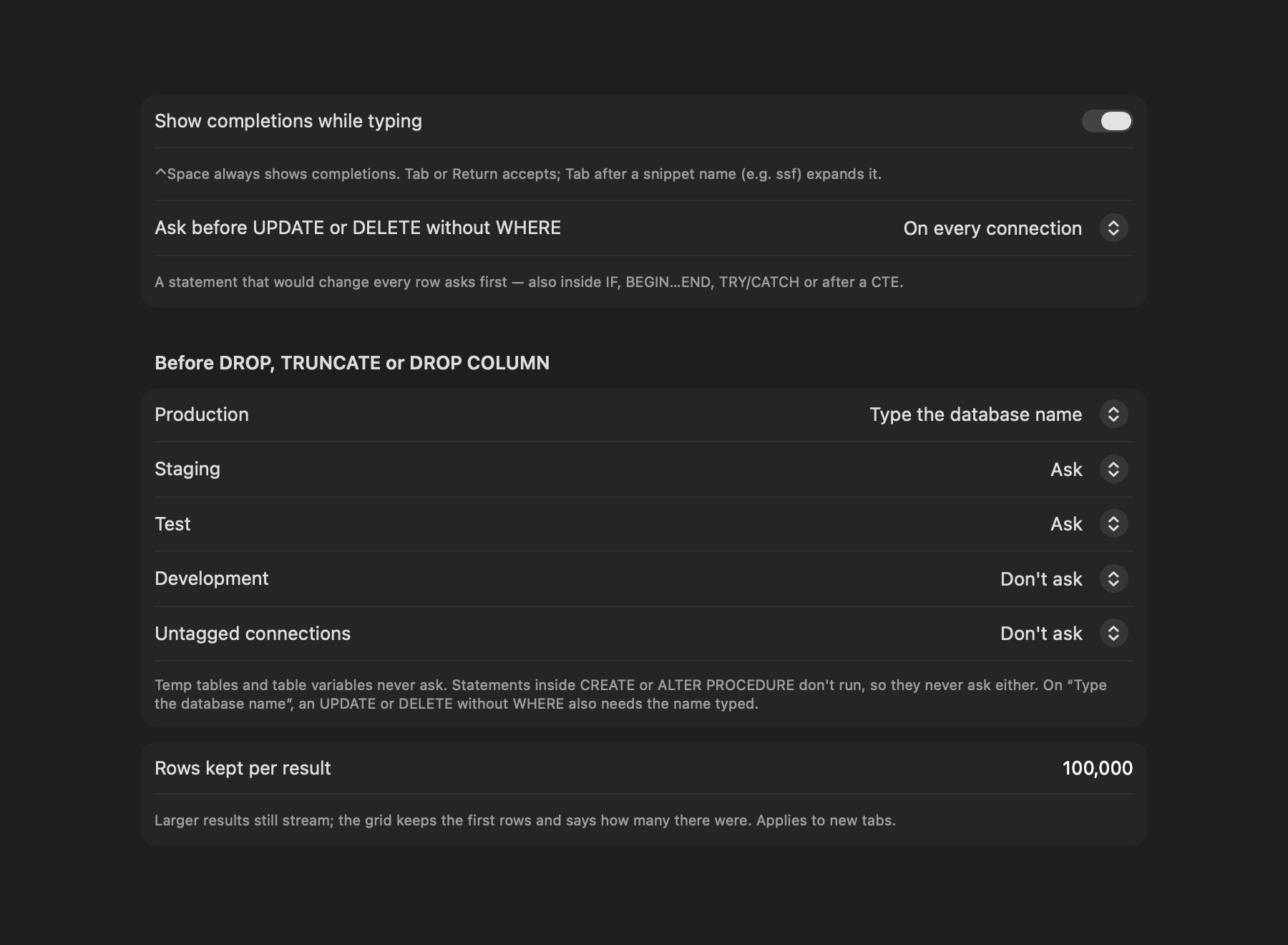
- Show completions while typing: ⌃Space always shows them.
- Ask before UPDATE or DELETE without WHERE: on every connection (the default), on production only, or never.
- Before DROP, TRUNCATE or DROP COLUMN: a level per environment colour: Type the database name, Ask or Don't ask, plus one for untagged connections. Production starts at Type the database name, staging and test at Ask, development at Don't ask.
- Rows kept per result: 100,000 by default. Larger results still stream; the grid keeps the first rows and says how many there were.
- Table aliases: the alias completion uses for a table (
Customers→cus), with your own per table. - Index naming: the pattern index suggestions use for their names.
#Formatting
Built-in styles and your own profiles, with a live preview. See Formatting.
#Snippets
The built-in snippets and your own: name, description and body with placeholders. See Writing queries.
#Keyboard
Pick a keymap (Lukla, SSMS, JetBrains or VS Code) and change any shortcut. See Keyboard shortcuts.
#Code Analysis
Turn analysis as you type on or off, set each rule's level, add custom rules and external linters. See Code analysis.
#AI
The endpoint, model and key, Test, the schema scope and your team's SQL rules. See AI assistant.
#Where settings are kept
Connections, history, snippets and tabs are kept in ~/Library/Application Support/Lukla Data Studio; passwords and the AI key are in the macOS Keychain. A .luklalint.json in a project folder overrides the code analysis settings for scripts there.