 Lukla Data Studio
Docs Results
Results grid
Select cells, ranges and rows like SSMS, copy as TSV, CSV, JSON or INSERT, find in results, sort, and export to CSV, Excel or JSON.
On this page
Results stream into the grid as the server sends them. Each result set gets a tab (Result 1, Result 2…), next to Messages, Execution plan and Statistics when the run has them.
#Selecting cells
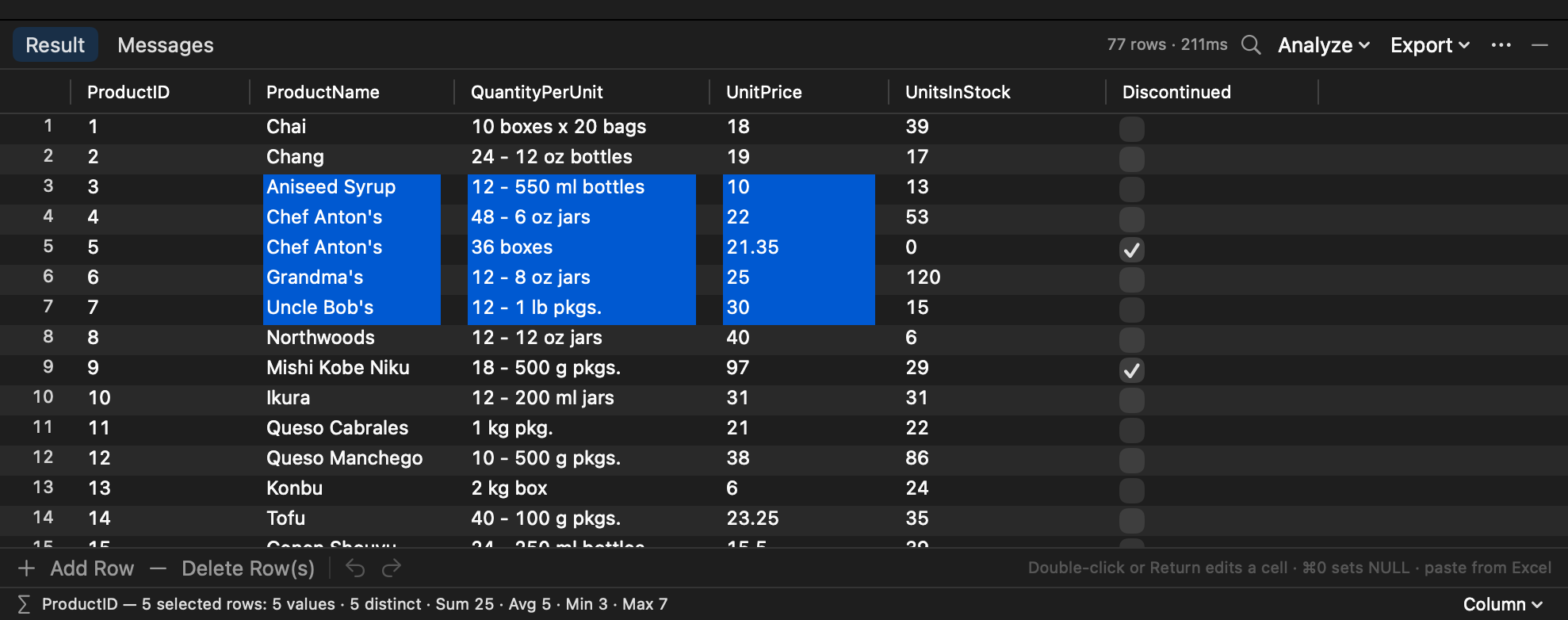
The grid selects cells, the way SSMS does:
| Do | To |
|---|---|
| Click a cell | Select it. |
| ⇧-click, or drag | Select the rectangle from the first cell. |
| ⌘-click | Add another cell or rectangle. |
| Click a row number | Select the whole row (⇧ and ⌘ work here too). |
| Click the corner above the row numbers, or ⌘A | Select everything. |
| Arrow keys / ⇧ + arrow keys | Move the active cell / grow the selection. |
#Copying
⌘C copies the selected cells as tab-separated text that pastes straight into Excel or Numbers; ⇧⌘C adds the column headers. With nothing selected, it copies every row. Right-click for more:
- Copy as CSV, Copy as JSON and Copy as INSERT (
INSERT INTO [TableName] …statements; replace the name); - Copy Cell and Copy Column.
In an editable grid the menu has Copy, Copy with Headers and Copy Cell, alongside the editing commands.
Copying a selection made with ⌘-click copies the block that covers it, with the cells you didn't select left empty.
#The summary bar
Under the grid, the summary describes the active column over the selected rows (or every row): count, distinct values, NULLs, and for numbers the sum, average, minimum and maximum. Column ▾ picks another column.
#Long values: JSON, XML and text
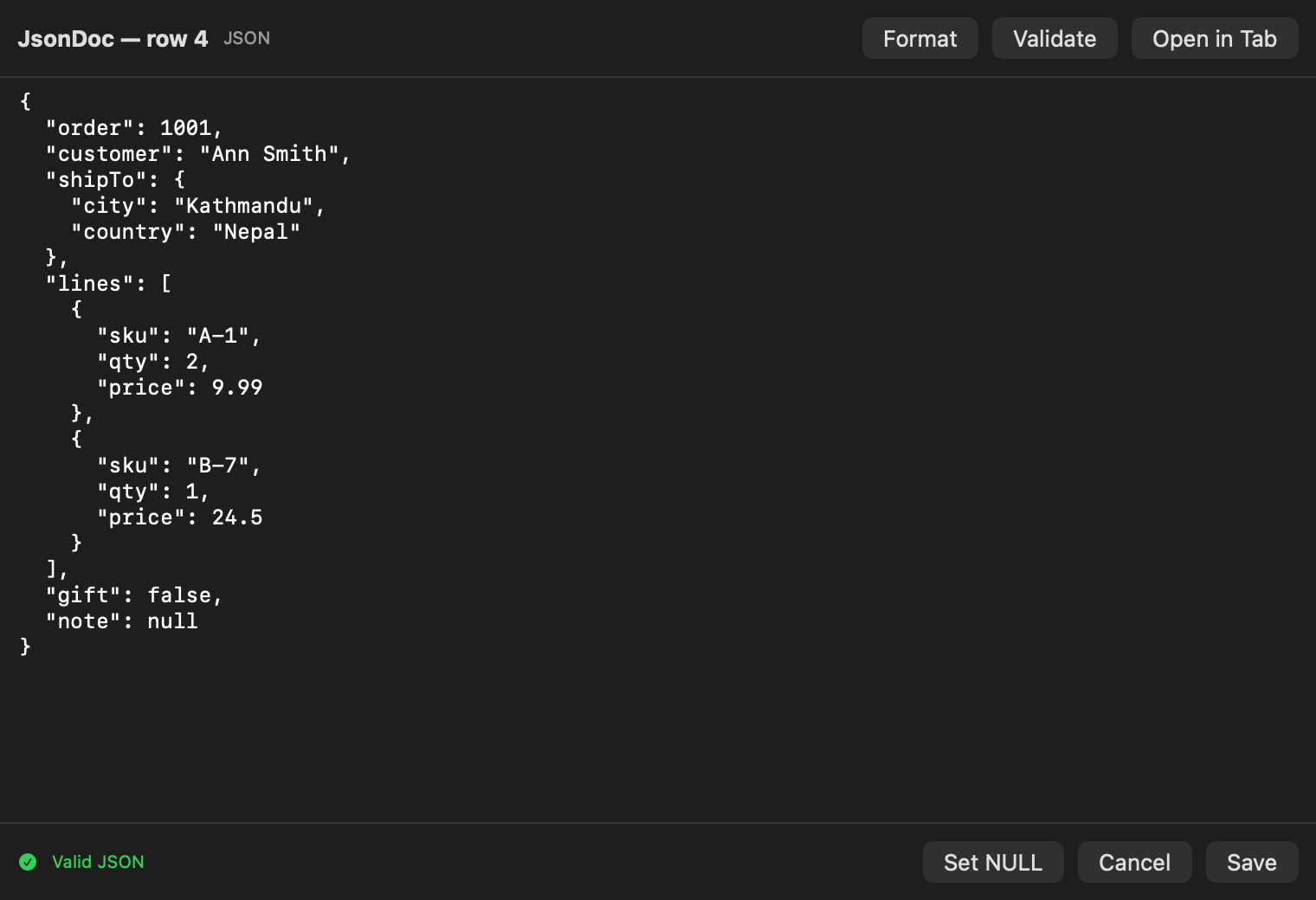
Double-click a cell with long text, JSON or XML to open it in the cell editor: Format pretty-prints it, Validate says where JSON or XML is broken, and Open in Tab opens it in an editor tab. In an editable grid the same dialog edits the value.
#Sorting and finding
- Click a column header to sort by it; click again to reverse.
- ⌘F in the grid (or the 🔍 button) finds text in the results: matching cells are highlighted, Next and Previous step through them, and Only matching rows hides the rest. Match case is an option.
#Big results
Each result set keeps up to 100,000 rows by default and says when it stopped; change the limit in Settings ▸ Editor. The rows stream in, so you can read the first ones while the rest arrive.
#Export
The Export ▾ button above the grid writes:
- CSV (Excel-friendly UTF-8),
- Excel (.xlsx), one result, or every result set as one workbook with a sheet each,
- JSON.
In Excel files, numbers and dates become real number and date cells, NULL becomes an empty cell, text keeps its leading zeros, IDs longer than 15 digits stay text, and the header row is bold and frozen.